Partner Guide
Learn how to manage your marketplace, your products, and your orders quickly and easily with Eat and Seat.
Welcome to your partner dashboard. This tool gives you full control over your menu, orders, and business performance. The following sections explain every part of the interface you will see after logging in.
Get to Know Your Dashboard (Home)
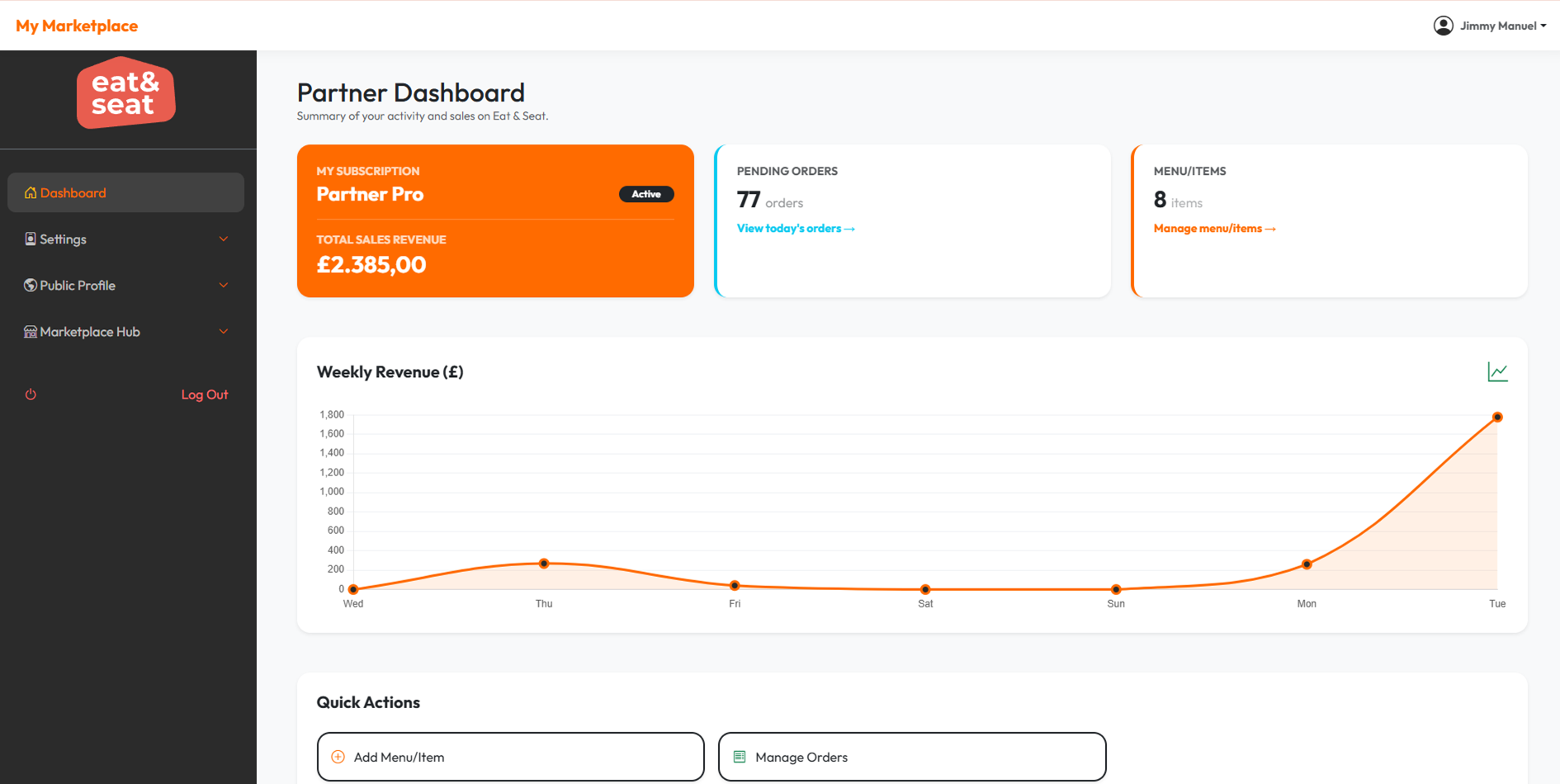
The Partner Dashboard Home is the main screen you see upon logging in. It is divided into key areas so you can get a summary of your business at a glance.
🔍 Detailed breakdown of each zone
Sales Summary (Total Revenue)
This card shows your lifetime total revenue generated from all completed orders (excluding cancelled ones). Right below it, you will see a bar chart with your weekly sales (last 7 days). Hover over any bar to see the exact amount earned that day.
Active Orders
Here you will see the number of orders that are currently in progress (not yet delivered or cancelled). Each active order requires your attention: you need to accept it, prepare it, and mark it as ready for delivery.
Menu / Items
This counter displays the total number of products you currently have active in your menu. Keep your menu organised and up-to-date.
Quick Links
Three direct access buttons to save you time: Order History, Update Profile, and Browse Chefs.
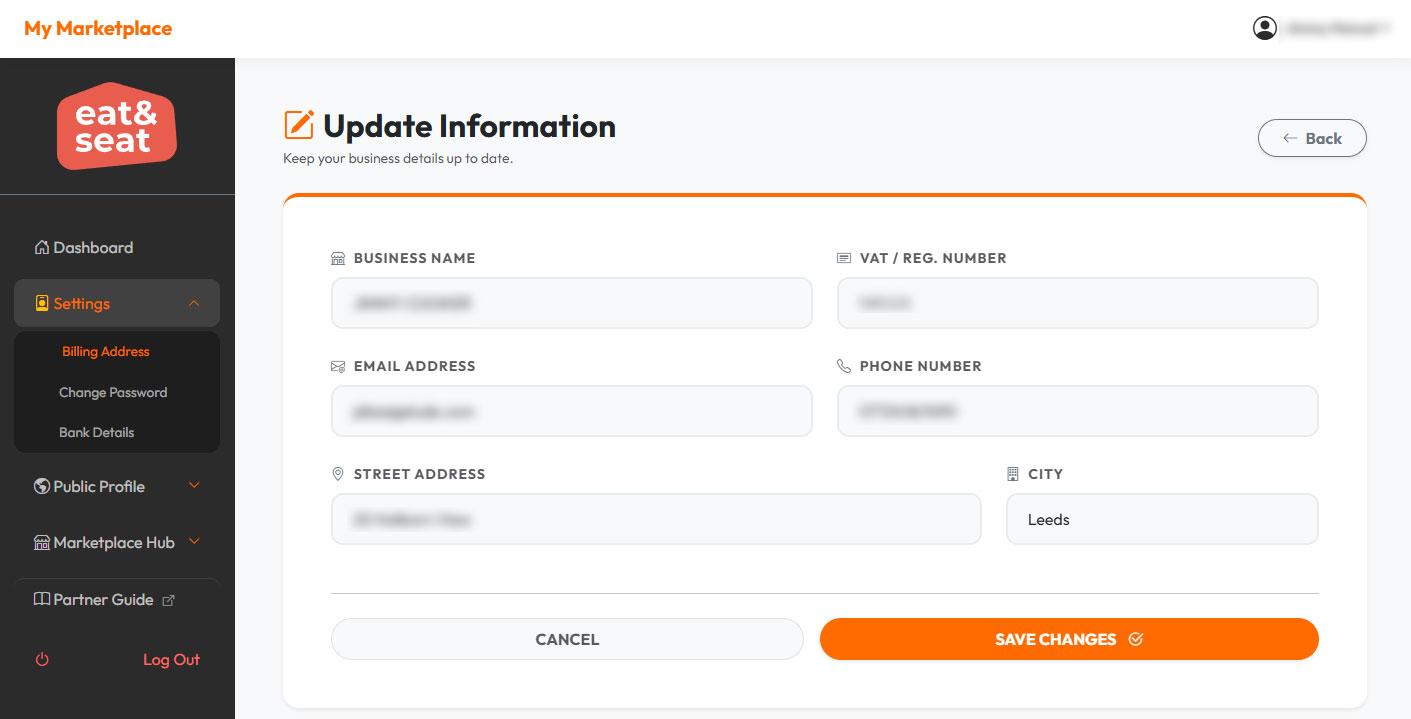
Profile Settings | Keep your business information up to date
Under this menu, you can manage your Billing Address, Bank Details (for payouts), and Change Password. These details are essential for correct invoicing and receiving your earnings.
Note: Your bank account number is partially masked (e.g., ****1234) for security when viewing.
Public Profile | Your Brand Story
Your Public Profile is the first thing customers see before they browse your menu. It appears at the top of every product page. Partners with a complete, attractive Public Profile see up to 35% more orders.
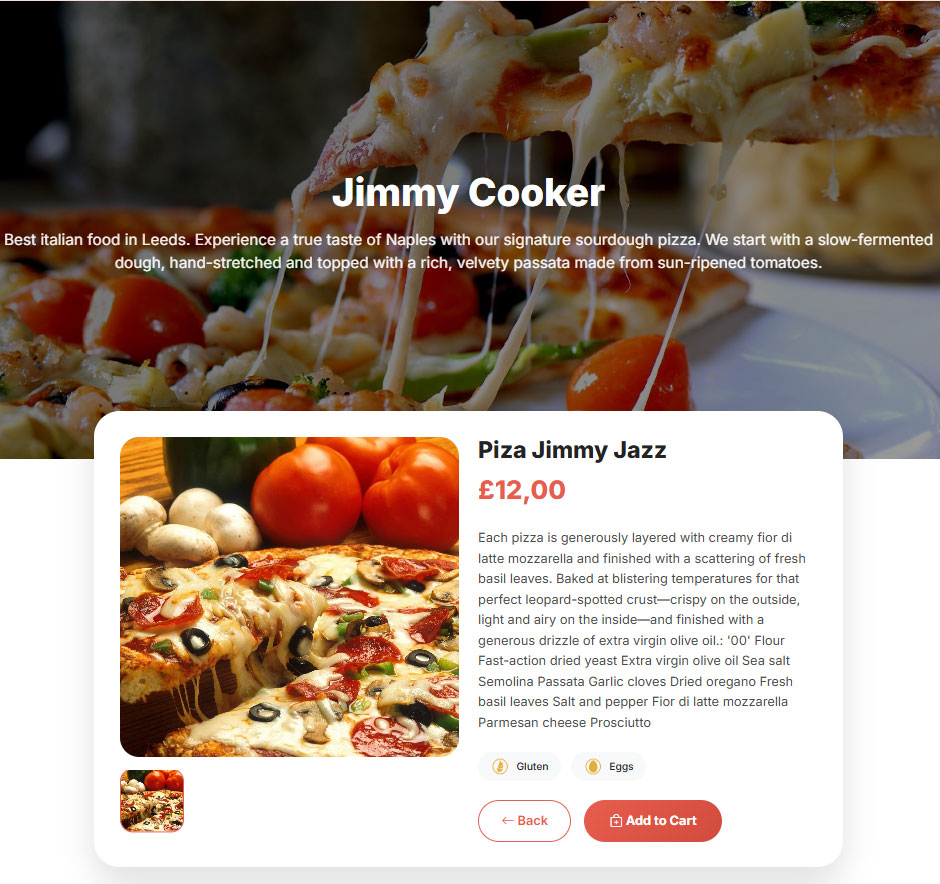
How to edit your Public Profile:
- Go to Profile Settings → Brand Story.
- Click EDIT INFO.
- Update your Welcome Title (catchy headline), Welcome Memo (2-3 sentences about your business), and upload a Cover Image (recommended size: 1200x600 pixels).
- Click SAVE CHANGES.
Marketing Tip
Your cover image should show your best dish or your team cooking. Smiling faces build trust! Update it seasonally to keep your menu feeling fresh and relevant.
Manage Orders
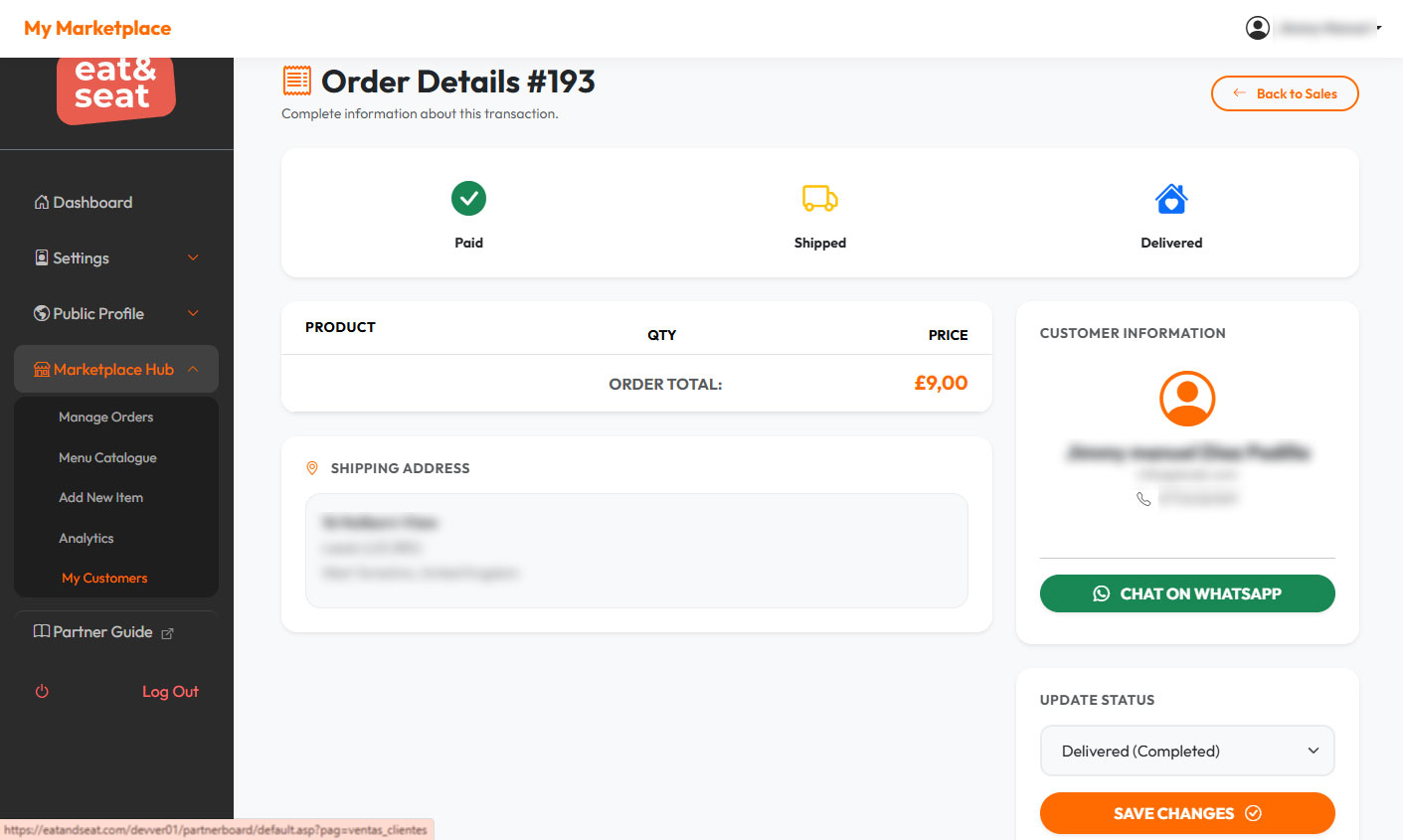
This page shows you all orders placed by your customers, sorted from newest to oldest. Use it to track every transaction, view customer details, and update order statuses.
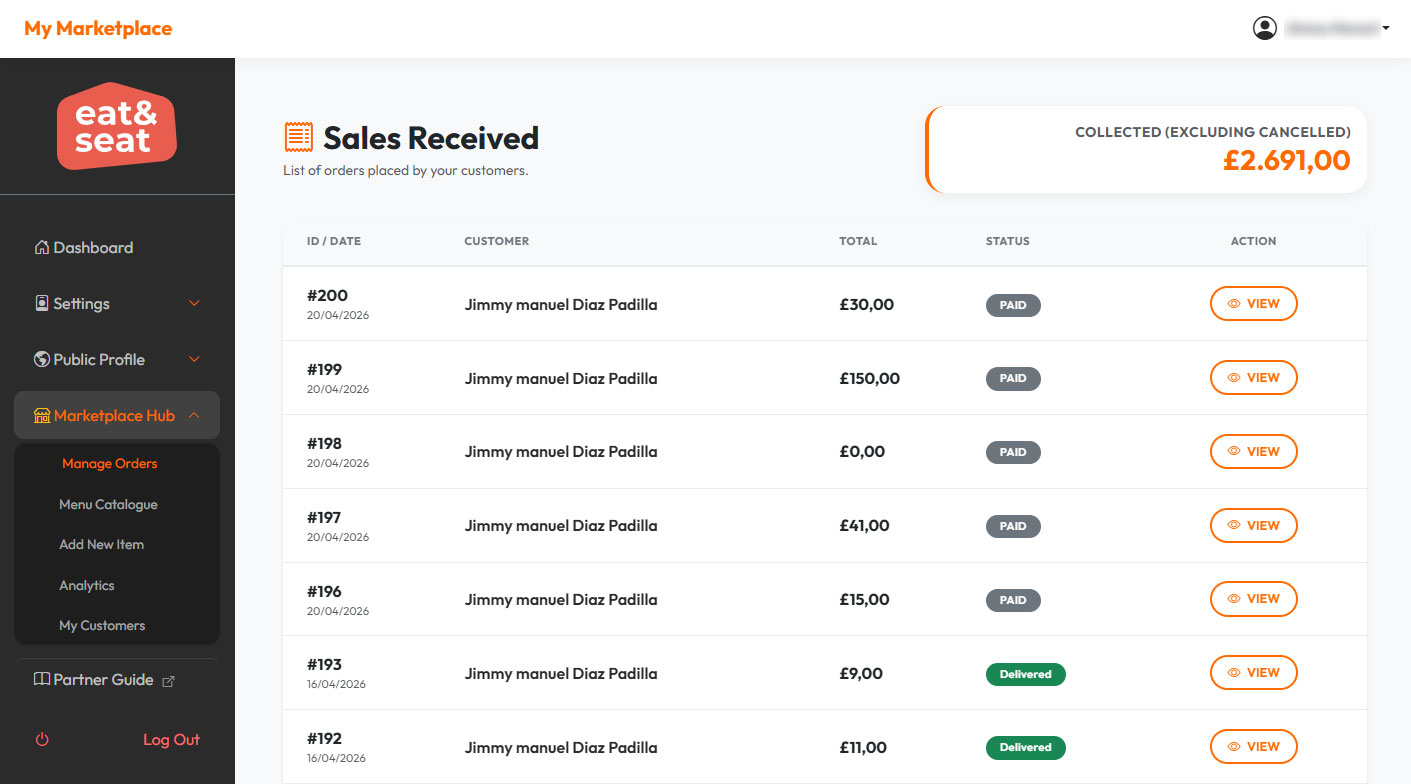
What you can do here:
- View all sales: The table displays Order ID, Date, Customer Name, Total Amount, and Current Status.
- Check your total collected: At the top right, you will see the total revenue from all completed orders (excluding cancelled ones).
- See order details: Click the VIEW button next to any order to see the full breakdown (items ordered, delivery address, customer notes).
-
Order statuses explained:
- Paid → Customer has paid, order ready for preparation.
- Shipped → Order is on its way.
- Delivered → Customer received the order (completed).
- Cancelled → Order was cancelled (excluded from totals).
Add New Item
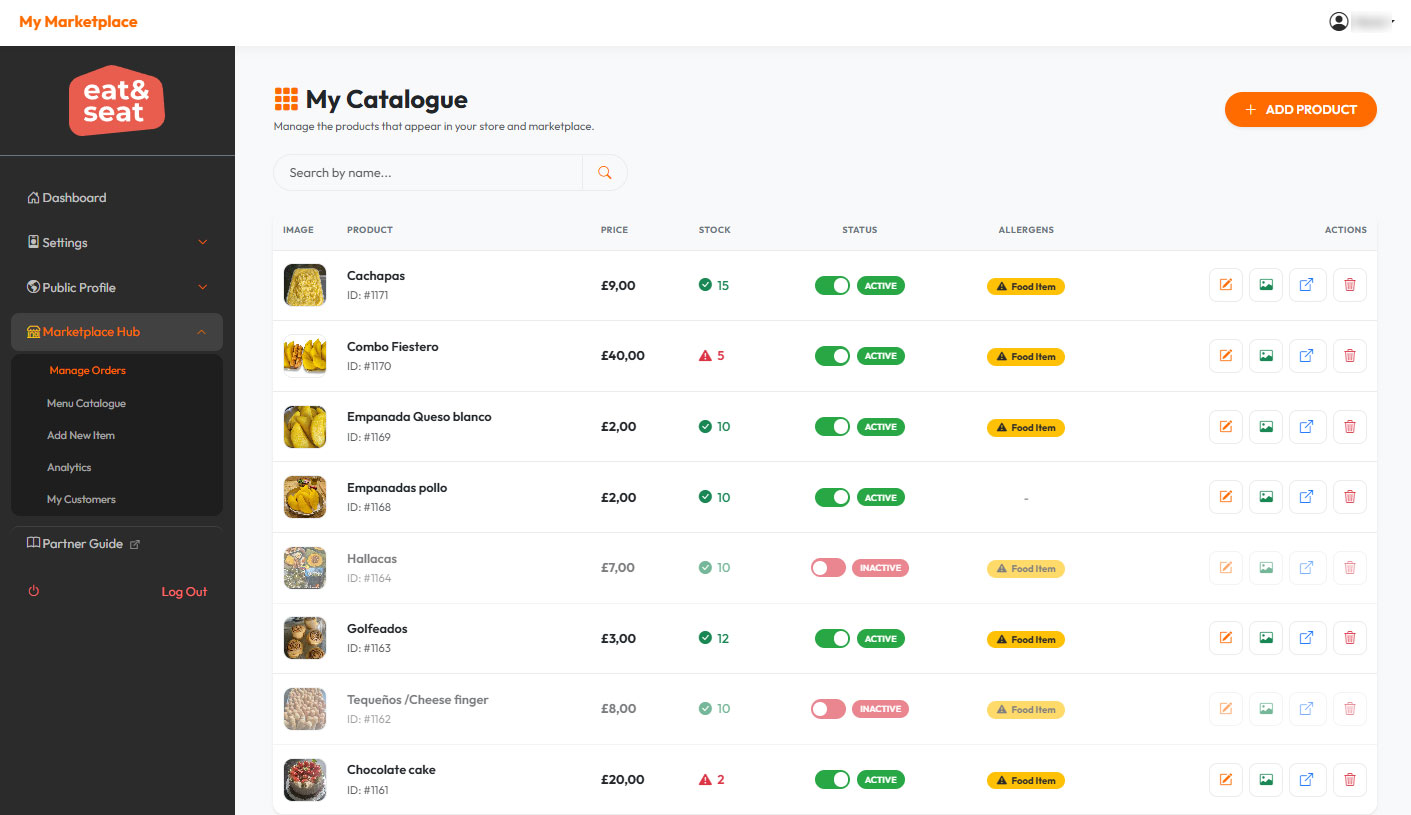
Use this form to add a new product to your menu. After filling in the basic information, you will be guided to upload images and set allergens.
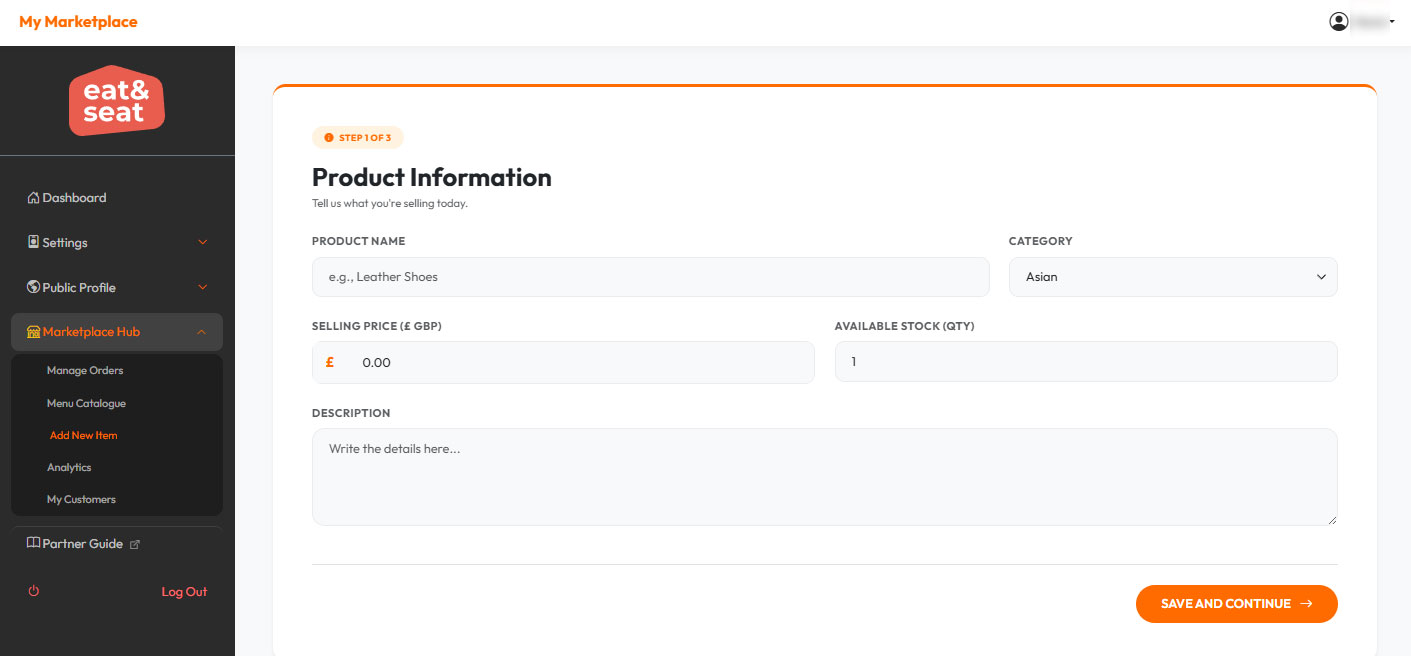
Step-by-step to add a new product:
- Product Name: Use a clear, descriptive name (e.g., "Spicy Chicken Burger" instead of just "Burger").
- Category: Select the appropriate category from the dropdown (Starters, Mains, Desserts, Drinks).
- Selling Price (£ GBP): Enter the retail price in British Pounds. Example:
12.99 for £12.99.
- Available Stock: Enter the quantity you have in inventory.
- Description: Write an appealing description (2-3 sentences).
- Click SAVE AND CONTINUE.
Marketing Tips for New Products
📸 For product photos:
- Use natural daylight or bright, warm lighting.
- Show the dish from a slight angle (not top-down).
- Keep the background clean and uncluttered.
✍️ For product descriptions:
- Start with an emotion: "Indulge in..." or "Satisfy your cravings..."
- Mention 2-3 specific ingredients.
- Add a call to action: "Perfect for a cosy night in!"
Analytics
This is your business intelligence dashboard. Track your sales performance, identify your best-selling products, and monitor critical stock levels.
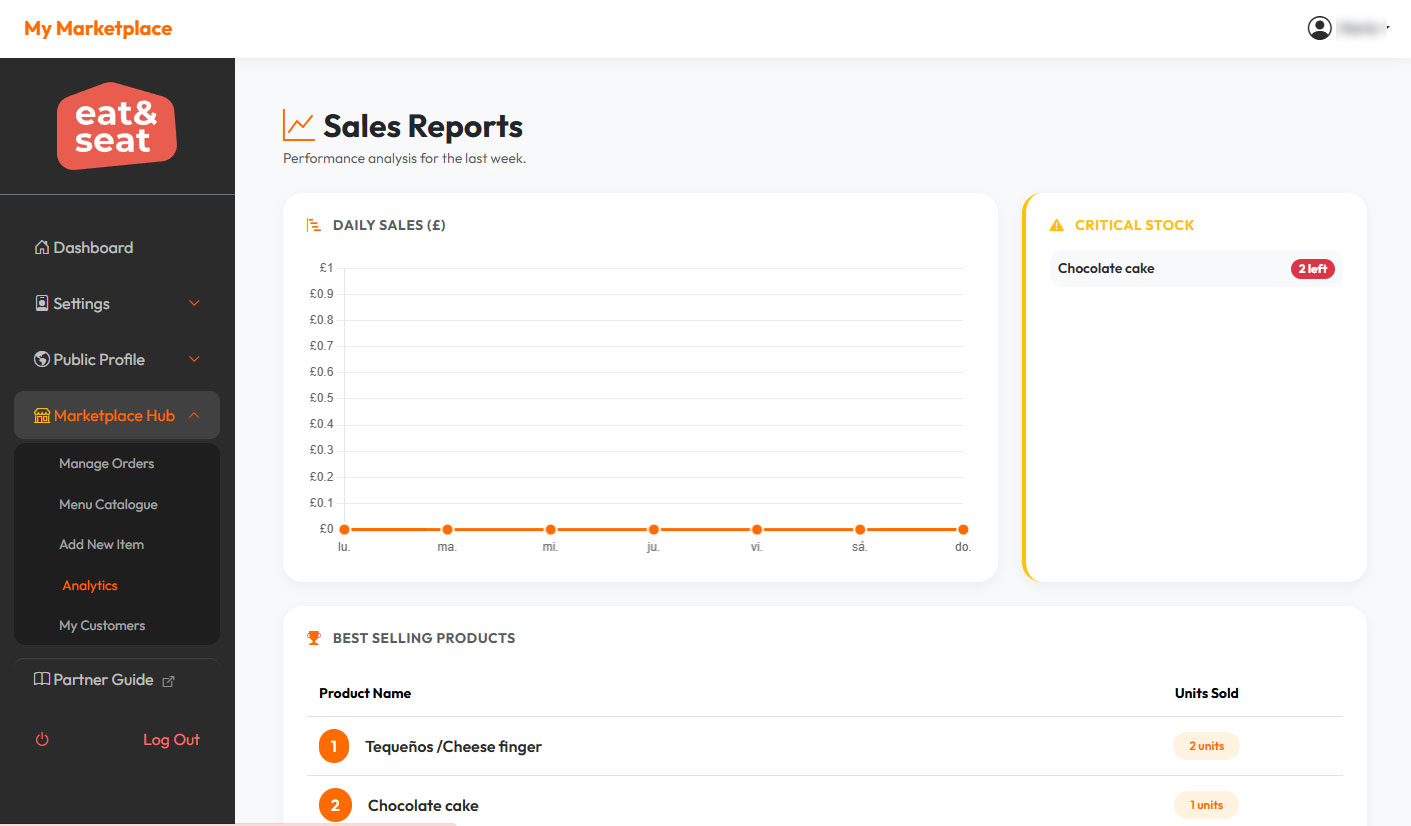
What you can analyse here:
- Daily Sales Chart (£): A line graph showing your revenue for the last 7 days.
- Critical Stock Alerts: Lists products with 5 or fewer units remaining.
- Best Selling Products: Shows your top 5 products ranked by units sold.
Marketing Tip
Use your Analytics to run targeted promotions. If you see a dip in sales on Tuesdays, launch a "Tuesday Special" discount. If a product is in your top 5, create a combo deal!
My Customers
This page shows you all customers who have ordered from you. Use this valuable data to build loyalty and encourage repeat business.
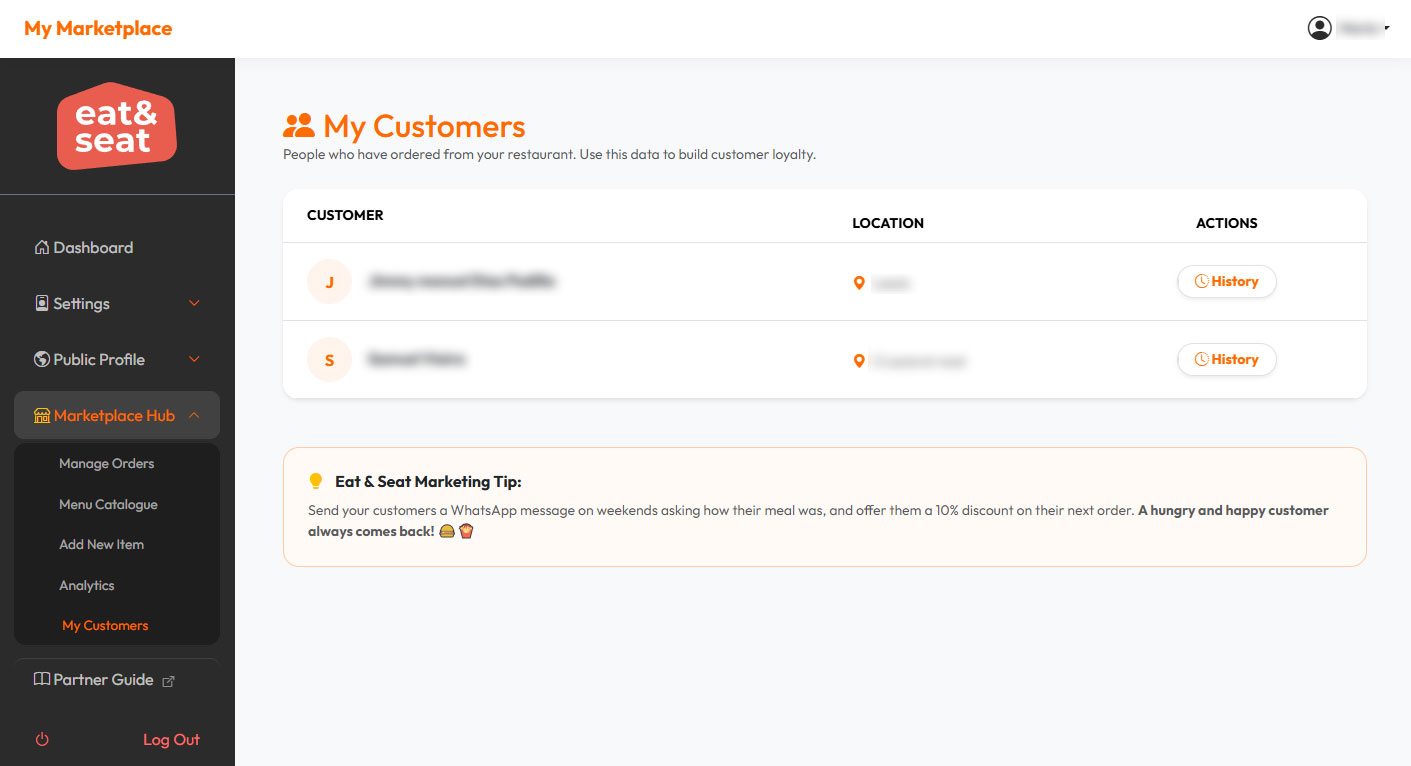
How to use the Customers section:
- Customer contact details: Each customer row shows their name, email, phone number, and city.
- WhatsApp chat: Click the WhatsApp button to send a message directly to the customer.
- Order history: Click the HISTORIAL button to see all orders from that specific customer.
Marketing Tips for Customer Retention
- Send a thank you message after their first order.
- Offer a 10% discount code for their next purchase.
- Ask for a review or photo of their meal.
- Notify them about new menu items or seasonal specials.
Need further assistance?
Our support team for Eat and Seat Partners is available Monday to Friday, 9am to 6pm (GMT).
Contact Support by email
Quick checklist for new partners
- Complete your billing profile and bank details
- Upload your Brand Story (Public Profile)
- Add at least 5 products with photos
- Set correct categories and allergens
- Check your Analytics weekly
- Reach out to customers via WhatsApp